Taktile MCP server
Learn how to connect AI assistants such as Claude, Cursor, and Cortex Code to your Taktile Workspace through the Taktile MCP server.
The Taktile MCP server lets AI assistants work in your Taktile Workspace through the Model Context Protocol (MCP). Once connected, an assistant such as Claude, Cursor, or Cortex Code can build and test Decision Flows, work with cases, set up connections, and more, on your behalf.
The MCP server uses the same tools as Taktile AI (sign-in necessary). Anything Taktile AI can do in the Taktile app, your own MCP client can do too.
Find your MCP URL
Each Workspace has its own MCP server with its own URL. An MCP client connected to one Workspace cannot read or change anything in another Workspace. To work in several Workspaces, add one MCP server per Workspace to your client.
To find the MCP URL of your Workspace, follow these steps:
- Open the Workspace in Taktile.
- Go to Settings.
- In the side menu, click MCP URL.
- Click Copy to copy the URL, then click Done.
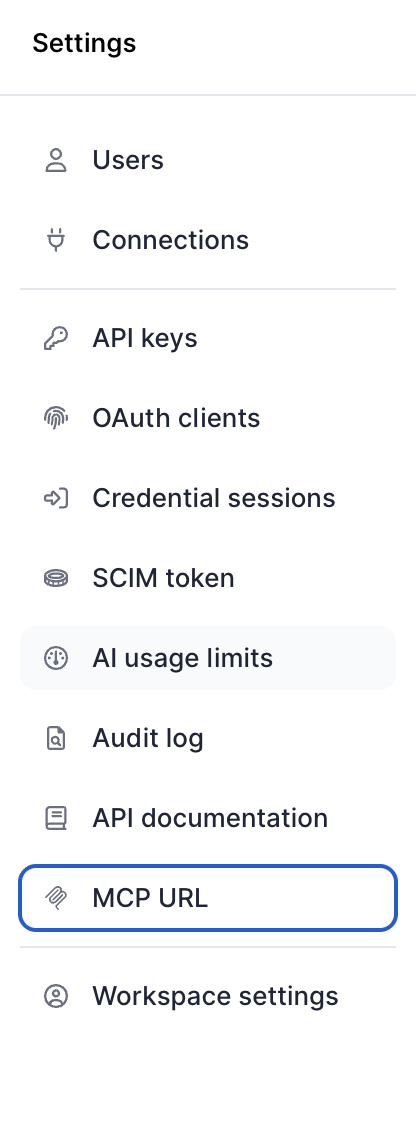
The URL has the format https://<your-workspace-domain>/mcp.
MCP access is enabled per Workspace. If you don't see MCP URL in Settings, contact Taktile.
Connect your MCP client
The Taktile MCP server is a remote MCP server that uses the Streamable HTTP transport and OAuth sign-in. To add it to your client, follow the steps for your client below. In every example, replace <MCP URL> with the URL you copied from Settings.
Claude Code
- Add the server from your terminal:
claude mcp add --transport http taktile <MCP URL> - Start Claude Code and run
/mcp. - Select
taktile, then select Authenticate. - Sign in to Taktile in the browser window that opens and click Authorize.
To make the server available in all your projects, add --scope user to the command.
Claude and Claude Cowork
Custom connectors work in Claude Cowork, Claude Desktop, and Claude on the web.
- In Claude, go to Settings > Connectors.
- Click Add custom connector.
- Enter a name, for example
Taktile, and paste your MCP URL as the remote MCP server URL. - Click Add, then click Connect.
- Sign in to Taktile and click Authorize.
On Claude Team and Enterprise plans, an organization owner must add the custom connector first. Each member then connects it with their own Taktile account. For details, see the Claude documentation on custom connectors.
Cursor
- Open
~/.cursor/mcp.json(all projects) or.cursor/mcp.json(one project). - Add the Taktile server:
{ "mcpServers": { "taktile": { "url": "<MCP URL>" } } } - Open Cursor Settings > Tools & MCP and sign in to the
taktileserver when prompted. - Sign in to Taktile in the browser window that opens and click Authorize.
If sign-in fails with redirect_uri must be https or a loopback address, Cursor sent a cursor:// callback that Taktile doesn't accept. To connect anyway, route the connection through mcp-remote, which requires Node.js:
{
  "mcpServers": {
    "taktile": {
      "command": "npx",
      "args": ["-y", "mcp-remote@0.15.2", "<MCP URL>"]
    }
  }
}
mcp-remote opens the Taktile sign-in page in your browser and receives the callback on a local port.
Cortex Code
- Add the server from your terminal:
cortex mcp add taktile <MCP URL> --transport http - When Cortex Code prompts you to authenticate, sign in to Taktile in the browser window that opens and click Authorize.
Cortex Code stores the server in ~/.snowflake/cortex/mcp.json. For details, see the Snowflake documentation on Cortex Code MCP support.
Other clients
Any MCP client that supports remote servers with OAuth can connect. Configure the client with these settings:
| Setting | Value |
|---|---|
| Server URL | Your MCP URL |
| Transport | Streamable HTTP |
| Authentication | OAuth 2.1 with PKCE. Clients register dynamically, so no client ID is needed |
The client discovers the Taktile sign-in page from the server. You don't need to configure an authorization server.
If your Workspace restricts access to an IP allowlist, the MCP server applies the same allowlist. Clients that call the server from their vendor's cloud, such as custom connectors in Claude, are blocked unless their IP addresses are on the allowlist.
Authentication and permissions
The MCP server always acts as you. When you connect a client, you sign in with your Taktile account and approve access on the Authorize access screen. The client then works in that Workspace with your roles and permissions, so it can't do anything that you can't do in the Taktile app.
Access tokens expire after 15 minutes, and your client refreshes them in the background. Audited tool calls appear in the audit log under your name, marked as Acting through the MCP server.
Changes to Decision Flows appear in the Decision Flow change history under your name, followed by via MCP. For how to inspect them, see Change history (sign-in necessary).
Available tools
The MCP server offers the same tools as Taktile AI, grouped into these categories:
| Category | What you can do |
|---|---|
| Flow authoring | Read and edit Decision Flows, nodes, node groups, input and output schemas, parameters, and versions |
| Testing | Run Decision Flows in the Sandbox, test single nodes, manage datasets, and read test run results |
| Reviews and monitoring | Request and read reviews, read live traffic, and read audit log events |
| Case management | Work with queues, case templates, cases, tasks, comments, and case actions |
| Connections and files | Set up data provider, custom, database, and webhook connections, and upload files |
| Entities and Events | Read Entity types, Entities, Event types, and Events |
| Agents and AI | Build and update agents, try them in the playground, and list available AI models |
| Workspace and knowledge | Read Workspace details and members, search the Taktile documentation, and load built-in skills |
The tool set grows regularly. Your client always lists the tools that are currently available.
Send feedback
The MCP server includes a tool for sending feedback to Taktile. To report a tool that fails or behaves unexpectedly, a missing capability, or other product feedback, ask your assistant to submit feedback. The assistant can name the tool the feedback is about, so the report reaches the team that owns it.